A webOS application that enhances your Twitch viewing experience by blocking ads, automatically claiming channel points, bypassing subscriber-only VOD restrictions, and providing additional features like emote support and improved chat styles.
Based on youtube-webos
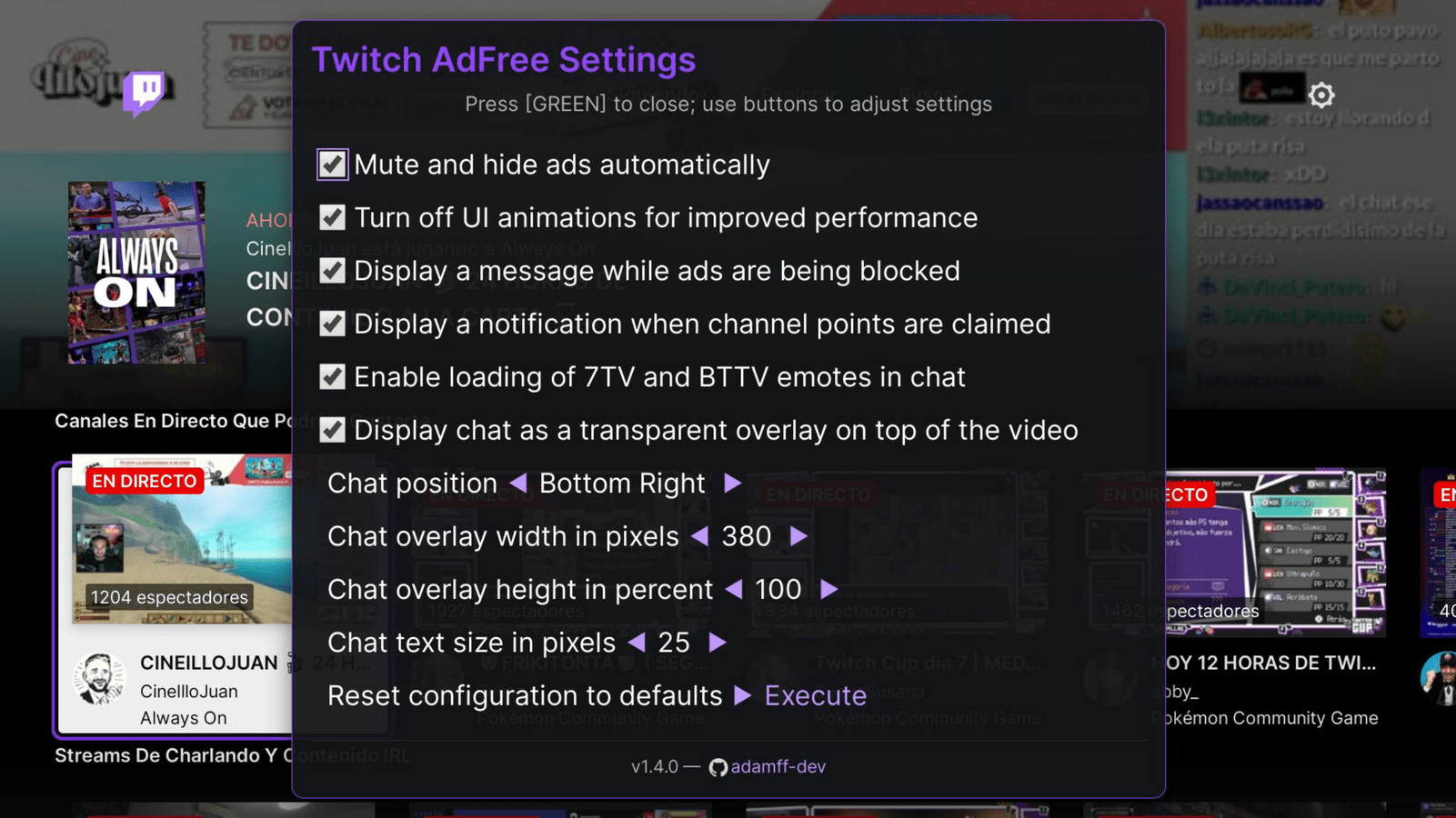
- Ad Blocking: Mute and hide ads automatically
- Channel Points: Automatically claims community points during streams
- Sub-only VODs: View subscriber-only VODs without a subscription
- Emote Support: Integrated support for 7TV and BTTV emotes in chat
- Performance: Disable animations to improve performance on lower-end devices
- Auto-Accept: Automatically reject cookies and accept mature content banner
- Chat Overlay: Display chat as a transparent overlay on top of the video with customizable position, size, and font settings
- Status Messages: Optional notifications for blocked ads and claimed channel points
- Navigation Shortcuts: Navigate through top navigation using number keys:
- 1️⃣ — Home
- 2️⃣ — Following
- 3️⃣ — Browse
- 4️⃣ — Search
Note: Configuration screen can be opened by pressing 🟩 GREEN button on the remote.
We welcome contributions of any kind — code, documentation, bug reports, or feature suggestions.
If you find this project helpful and want to support its development, consider making a donation.
Your support helps keep the project active and maintained. Thank you! 🙌


You can also support the project with cryptocurrency:
- Bitcoin:
bc1qrcdyq2yjgv5alm9kky2e6vyfhnafn3wgd2gjls - Ethereum:
0x43b9649985d6789452abe23beb1eb610cee88817 - Solana:
4qK7eSQemRj85VY9CQp5XHRwX5fNjoSJ1ou4gmqk6jtM - Litecoin:
ltc1qp6mya23a73n36dc7r0tfwfphn2v53phmhen99j
- Use Device Manager app - see Releases for a
prebuilt
.ipkbinary file - Use webOS TV CLI tools -
ares-install twitch...ipk(for webOS CLI tools configuration see below)
Configuration screen can be opened by pressing 🟩 GREEN button on the remote.
In order to autostart an application the following command needs to be executed via SSH or Telnet:
luna-send-pub -n 1 'luna://com.webos.service.eim/addDevice' '{"appId":"twitch.adamffdev.v1","pigImage":"","mvpdIcon":""}'This will make "Twitch AdFree" display as an eligible input application (next to HDMI/Live TV, etc...), and, if it was the last selected input, it will be automatically launched when turning on the TV.
This will also greatly increase startup performance, since it will be runnning constantly in the background, at the cost of increased idle memory usage. (so far, relatively unnoticable in normal usage)
In order to disable autostart run this:
luna-send-pub -n 1 'luna://com.webos.service.eim/deleteDevice' '{"appId":"twitch.adamffdev.v1"}'- Clone the repository
git clone https://github.com/adamff-dev/twitch-adfree-webos.git- Enter the folder and build the App, this will generate a
*.ipkfile.
cd twitch-adfree

# Install dependencies (need to do this only when updating local repository / package.json is changed)
npm install

npm run build && npm run packageThis is partially based on: https://webostv.developer.lge.com/develop/getting-started/developer-mode-app
- Install Developer Mode app from Content Store
- Enable developer mode, enable keyserver
- Download TV's private key:
http://TV_IP:9991/webos_rsa - Configure the device using
ares-setup-device(-amay need to be replaced with-mif device namedwebosis already configured)PASSPHRASEis the 6-character passphrase printed on screen in developer mode app
ares-setup-device -a webos -i "username=prisoner" -i "privatekey=/path/to/downloaded/webos_rsa" -i "passphrase=PASSPHRASE" -i "host=TV_IP" -i "port=9922"- Modify device info:
ares-setup-device --modify emulator --info "host=TV_IP"- Enable sshd in Homebrew Channel app
- Generate ssh key on developer machine (
ssh-keygen) - Copy the public key (
id_rsa.pub) to/home/root/.ssh/authorized_keyson TV - Configure the device using
ares-setup-device(-amay need to be replaced with-mif device namedwebosis already configured)
ares-setup-device -a webos -i "username=root" -i "privatekey=/path/to/id_rsa" -i "passphrase=SSH_KEY_PASSPHRASE" -i "host=TV_IP" -i "port=22"npm run deploy
- The app will be available in the TV's app list or launch it using ares-cli.
npm run launchThe following one-liner is convenient for debugging because it chains together all the essential steps — building, packaging, deploying, and launching — into a single command:
pnpm run build && pnpm run package && pnpm run deploy && pnpm run launch